If you’re searching for how to scan rfid tags into google sheets, the fastest path is to make your RFID reader behave like a keyboard—so every tag read “types” data directly into the next cell in Sheets.
In this guide, we’ll walk through several practical setups we use in real inventory workflows (from a simple desktop station to a mobile scanning cart). You’ll finish with a clean Google Sheet that logs EPC/UID, time, location, and operator—without building a heavy system.
Why Google Sheets is a surprisingly strong RFID logging tool
Google Sheets is popular in warehouses because it’s:
- Instantly shareable across teams and locations
- Low friction for procurement, ops, and QA
- Easy to automate with formulas, dropdowns, and Apps Script triggers
For many teams, the goal isn’t “perfect software.” It’s fast, reliable capture with a clear audit trail.
The core idea: treat the RFID reader as “data entry”
Most lightweight deployments of how to scan rfid tags into google sheets come down to one of these data paths:
- Keyboard Wedge (HID) → Google Sheets
- Mobile Reader → Keystroke Output → Google Sheets
- Reader/Device → Webhook/App Script → Google Sheets
- Google Form as the “front door” → Sheet as the database
Keyboard wedge is the simplest because Sheets already accepts typed input. Many RFID setups use keyboard wedge behavior for quick capture workflows.

Method 1: The simplest “plug-and-scan” workflow
Best for
- Desktop receiving stations
- Encoding & verification desks
- Small teams that want zero app development
What you do
- Open a Google Sheet.
- Click the first input cell (example: A2).
- Use a keyboard-wedge RFID reader so each scan “types” the tag value.
- Add a suffix like ENTER or TAB so the cursor moves automatically.
Keyboard wedge behavior is commonly described as sending tag data like keystrokes into any text field.
Make it work cleanly in Sheets
Use a sheet layout like this:
| Column | Field | Example |
| A | EPC or UID | 3008 33B2 DDD9 0140 0000 0001 |
| B | Timestamp | 2026-03-02 10:41:12 |
| C | Operator | James |
| D | Location | Receiving Dock 2 |
| E | Action | Receive / Count / Move / Ship |
Tip we use: set the scanner to send ENTER after each scan so the next scan lands in the next row.
Method 2: Mobile scanning into Sheets
Best for
- Aisle counts
- Cycle counting
- Putaway / transfer scans
Many Android enterprise devices support an “output as keystrokes” mode (often called keystroke output), which sends captured data into the active app as if typed. DataWedge documentation describes keystroke output as sending processed data as keystrokes to the associated app.
Practical workflow
- Open Google Sheets on the device (or a browser).
- Put the cursor in the EPC/UID cell.
- Scan tags—each scan fills a new row (using ENTER/TAB suffix).
This is also one of the most commonly used and fastest-to-adopt methods for many teams, especially for walk-and-scan inventory counts.

Method 3: “Form front-end” for cleaner inputs
Sometimes you want more than EPC—like condition, carton ID, or reason codes. A Google Form gives a structured entry screen, and responses go into Sheets automatically when linked.
Best for
- Returns processing
- Exception logging (damaged, missing, relabel)
- Multi-warehouse teams that need consistent fields
How it looks
- Scan EPC/UID into the form field (keyboard wedge or mobile keystroke)
- Pick dropdowns (Condition, Action, Zone)
- Submit → entry lands in the response sheet
This method keeps Sheets clean and reduces accidental edits.
A “ready to use” inventory template
Sheet 1 — Scan Log
Raw append-only log, no manual edits
Suggested columns:
epc_or_uid
scan_time
operator
site
zone
action
notes
Sheet 2 — Item Master
Maps EPC to SKU, style, color, size, etc.
Sheet 3 — Dashboard
Useful formulas:
COUNTUNIQUE(epc_or_uid) for unique tag count
Pivot table by zone and action
Conditional formatting to flag duplicates in the last X minutes
This structure is our go-to setup for practical inventory control. It’s not just about getting scans into a spreadsheet—it’s about turning RFID scans into usable inventory actions.

What RFID labels work best for Sheets-based inventory scanning
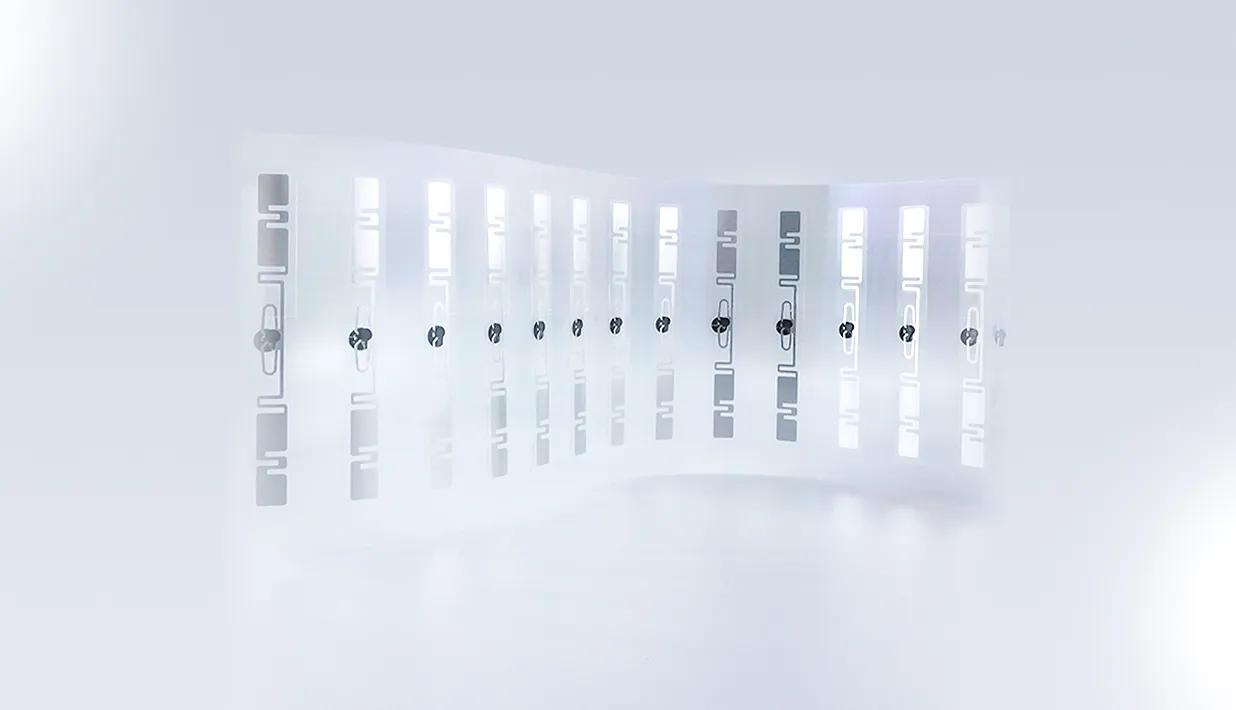
To make scanning smooth, your label choice should match your read environment and business goal (speed, durability, encoding method). Here’s a practical comparison we use when specifying RFID labels for inventory programs.
RFID label spec checklist
| Parameter | What to decide | Typical options we supply |
| Frequency | Where you scan | UHF (RAIN) for bulk inventory, HF/NFC for close-tap use |
| Chip | Memory & features | EPC memory size, User memory needs, encoding/security requirements |
| Form factor | Application surface | Hangtag, sticker label, on-metal, rugged tag |
| Printing | Visual ID | Logo, SKU text, barcode/QR, serials |
| Encoding | Data format | EPC serialization, TID capture, custom user memory |
| Adhesive/material | Durability | PET, paper, special adhesives, eco options |
| Read performance | Range & speed | Antenna tuned for your region and use case |
A quick buyer-oriented rule we use:
If your team wants fast aisle counts, UHF RFID labels are usually the most practical.
If you need intentional, one-at-a-time scanning (like check-in desks), HF/NFC can be a better “controlled scan” approach.
This keeps the article informational while still guiding readers toward the right products once they visit your website.

Reference case
This kind of design is useful when you want a fixed scanning point (doorway, tool crib, check-in station) and you want the data centralized in Sheets.
Conclusion
Now you’ve got multiple practical ways to implement how to scan rfid tags into google sheets—from a “plug-and-scan” keyboard wedge station to a mobile workflow and a structured Google Form log. If your next step is choosing the right RFID label format (hangtag vs sticker, UHF vs HF/NFC, chip and encoding options), we can help you match performance and cost to your workflow. After reading this, you can choose to source related RFID labels, tags, or custom solutions—or get more implementation ideas—at rfidlabel.com.
FAQs
1. Can we scan multiple RFID tags at once into one Google Sheet row?
Yes—if you use UHF inventory-style reading, you can capture a burst of EPCs and append them as multiple rows (recommended) or concatenate them into one cell (less recommended for counting accuracy). The best layout depends on whether your team audits by item or by batch.
2. Should we store EPC, TID, or both in Google Sheets?
For basic inventory, EPC is usually enough. If you need stronger anti-duplication checks, warranty proof, or higher confidence identity, logging both EPC and TID can be useful—especially for high-value items or controlled programs.
Recommended Product
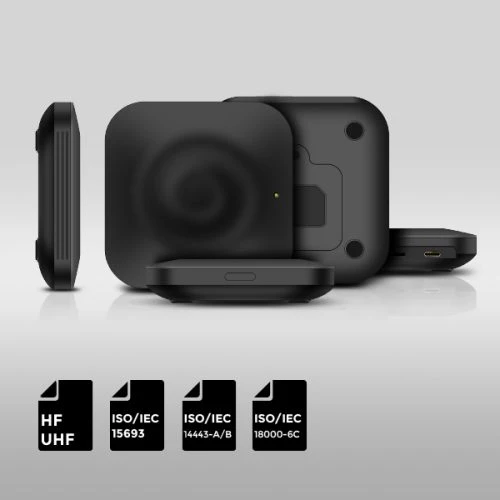
HF+UHF Dual-Band RFID Reader / Writer AZ-R1
This is a high-performance reader/writer with both HF and UHF reading capabilities and supports a variety of protocol standards, such as ISO 18000-6C, ISO 14443 A/B, and ISO 15693. With excellent HF and UHF reading performance, it can achieve UHF tag reading at rapid velocity and maintain a high recognition rate simultaneously. Besides, it is easy to deploy and operate by connecting its USB port to a PC without driver installation. All these make it widely used in various RFID applications such as logistics, access control, anti-counterfeiting, and production process control.