In today’s highly automated business environment, RFID technology has become a key component in areas such as asset tracking, inventory management and access control. As an important part of the RFID system, RFID printers are responsible for encoding and printing data into the tags, ensuring that the labels can be properly identified and used. However, even the most reliable RFID printers can occasionally malfunction, affecting productivity and label quality. This article will detail the common problems of RFID printer and their quick fixes to help users in the event of failure, which can be quickly eliminated to reduce downtime and improve work efficiency.
RFID Printer FAQ Overview

RFID printers in the daily use of the process may encounter a variety of problems, these problems can be broadly divided into the following categories:
- Print quality problems: including unclear printing, fuzzy handwriting, uneven colour or no print content on the label at all.
- Mechanical failures: such as paper jams, poor paper feed, print head movement blocked and other physical failures.
- Software and driver problems: driver errors, software conflicts, improper settings and other functional abnormalities.
- RFID chip recognition problems: RFID labels print VOID (invalid), can not write the RFID chip, data scanning errors.
- Environmental factors: temperature, humidity, dust and other external environment on the printer’s performance.
- Inadequate maintenance: a variety of problems caused by long-term use but lack of proper maintenance.
Understanding the types and manifestations of these problems is the first step in quickly locating the cause of the failure and taking effective repair measures.
Quick Fixes for Common Problems
The following table lists in detail the specific performance of various types of RFID printer common problems, quick fixes and preventive measures to facilitate users to quickly find and solve the problem:
| Type of problem | Specific Performance | Quick Fixes | Preventive Measures |
| Print Quality Problems | Printing is not clear and the characters are blurred | 1. Clean the print head 2. Adjust the print density setting 3. Replace with high quality consumables | Clean the print head regularly and use recommended supplies |
| Uneven color | 1. Check if the ribbon is installed correctly 2. Replace the ribbon with a new one 3. Adjust the print speed to lower the speed of printing | Use the original ribbon and check the ribbon status regularly | |
| Nothing is printed on the label | 1. Check if the consumables are loaded correctly 2. Confirm if the print head is damaged 3. Check the printer settings | Load supplies correctly according to instructions | |
| Mechanical Failure | Paper jam | 1. Turn off the power and remove the jam 2. Check the paper path for foreign objects 3. Make sure the label size is set correctly | Use labels that meet specifications and keep the paper path clean |
| Poor paper feed | 1. Adjust the paper tension 2. Clean the feed rollers 3. Check the position of the paper guides | Clean the feed mechanism regularly and adjust the guides correctly | |
| Print head movement is blocked | 1. Check the print head tracks for foreign objects 2. Lubricate the moving parts 3. Check the drive belt for looseness | Clean the inside of the printer regularly to prevent foreign objects from entering | |
| Software and Driver Problems | Driver error | 1. reinstall the latest driver 2. check the driver compatibility with the operating system 3. restart the printer and computer | Regularly update the driver to keep the system up-to-date |
| Software conflicts | 1. Disable other software that may be interfering 2. Check your firewall settings 3. Run your printing software as administrator | Avoid running multiple print-related software programs at the same time | |
| Improper settings | 1. restore factory settings 2. reconfigure print parameters 3. refer to user manual for correct settings | Record valid settings and create a backup of the configuration | |
| RFID Chip Recognition Problems | RFID label printing VOID (void) | 1. Perform media and RFID calibration 2. Check for correct page setup 3. Reduce print speed | Perform RFID calibration before use and select the appropriate print speed |
| Unable to write to RFID chip | 1. Check RFID antenna position 2. Adjust RFID power settings 3. Confirm correct RFID chip position in label | Use compatible RFID labels to ensure proper placement | |
| Data scanning error | 1. configure the scanner to convert hexadecimal data to ASCII 2. check the encoding settings 3. update the scanner firmware | Regularly calibrate the scanner to use compatible data formats | |
| Environmental Effects | Temperature effects | 1. move the printer to a suitable temperature environment 2. wait for the printer to adjust to the ambient temperature 3. install a temperature control device | Place the printer in a constant temperature environment |
| Humidity Effects | 1. use a dehumidifier 2. seal unused supplies 3. adjust print settings for high humidity | Control the ambient humidity within the recommended range | |
| Dust contamination | 1. Use compressed air to remove dust 2. Clean the inside and outside of the printer regularly 3. Use a dust cover | Operate in a clean environment and perform regular maintenance | |
| Inadequate maintenance | Print head wear | 1. Replace the print head 2. Adjust the print head pressure 3. Reduce the print density | Regularly check the condition of the print head to avoid excessive temperatures |
| Deteriorated parts | 1. replace deteriorated parts 2. perform comprehensive maintenance 3. contact technical support | Follow the recommended schedule for preventive maintenance | |
| Inadequate Cleaning | 1. thoroughly clean the printer 2. establish a regular cleaning schedule 3. use professional cleaning tools and solvents | Establish daily, weekly, and monthly cleaning procedures |
In-depth analysis of the VOID (Voiding) problem of RFID tag label printing
RFID label printing VOID (invalid) is one of the most common problems encountered by users of RFID printers, but also the most vexing problem. When the printer can not successfully encode the data into the RFID chip, it will automatically print the “VOID” on the label, indicating that the label is invalid. This not only wastes labelling resources but can also lead to production delays.
Main causes of VOID problems
- Improper RFID calibration: the printer is unable to accurately locate the position of the RFID chip.
- Incorrect page setup: Label size, print area or RFID chip position is not set correctly.
- Excessive print speed: Excessive print speed may result in the printer not having enough time to communicate with the RFID chip.
- Problems with UMI bit settings: Especially when using the Monza4 chip in newer RFID tags, changes in the UMI bit function may result in encoding failures.
- RFID antenna problems: Incorrect antenna position or improper antenna power setting.
- Chip quality issues: Low-quality or damaged RFID chips may not respond properly to encoding commands.
System solution for VOID problem
To completely solve the RFID label printing VOID problem, the following systematic solutions are recommended:
- Perform a full calibration:
Perform media calibration to ensure that the printer can correctly recognize the label size and spacing.
Perform RFID calibration to help printers accurately locate RFID chips.
Calibrate the print head to ensure print quality.
- Optimize print settings:
Reduce print speed to allow sufficient encoding time.
Adjust RFID power settings to ensure proper signal strength.
Check and correct the page setup to ensure consistency with the label size and chip position.
In some RFID label designs, black marks or black lines on the liner can also assist the printer’s positioning sensor in identifying each label’s start point, improving print alignment and reducing the risk of misprints or encoding errors.
→ Learn more about this : What are RFID printer printing black lines?
- Update software and drivers:
Ensure that the latest version of the printer driver is used.
Update RFID encoding software to support the latest chip types.
Check UMI bit settings and make appropriate adjustments for different chip types.
- Improve consumable quality:
Use high-quality, certified RFID labels.
Ensure labels are stored in appropriate environmental conditions.
Avoid using damaged or deformed labels.

Best Practices for RFID Printer Maintenance
Prevention is better than cure. Regular maintenance can significantly reduce the frequency of RFID printer malfunctions, extend the life of the device, and ensure consistent print quality. The following are best practices for RFID printer maintenance:
Daily Maintenance
- Print head cleaning: Use a special cleaning card or a lint-free cloth dipped in isopropyl alcohol to gently wipe the print head to remove accumulated dust, adhesive and ink.
- External Cleaning: Wipe the outside of the printer with a clean cloth to keep the device tidy.
- Consumables Check: Ensure that labels and ribbons are loaded correctly and are not wrinkled or deformed.
Periodic Maintenance
- Internal Cleaning: Use compressed air to remove dust and debris from inside the printer weekly or monthly (depending on frequency of use).
- Sensor Cleaning: Clean the label sensors and ribbon sensors to ensure they are accurately detecting consumables.
- Roller Inspection: Inspect and clean the paper feed rollers and platen rollers to ensure they are running smoothly.
Preventive Maintenance
- Regular Calibration: Perform printer calibration every time a new batch of labels or ribbons is replaced, or once a month.
- Firmware Updates: Check for and install printer firmware updates periodically for the latest features and to fix known problems.
- Parts Replacement: Replace wear-prone parts, such as printheads and rollers, according to the manufacturer’s recommended schedule.
Environmental Controls
- Temperature control: Place the printer in a temperature-controlled environment (typically 15-32°C).
- Humidity control: Maintain relative humidity between 20-85% to avoid excessive dryness or humidity.
- Dust control: Cover the dust cover when not in use to minimize dust accumulation.
Conclusion
RFID printers, as an important part of modern enterprise automation systems, are critical to business continuity with their stable operation. Through the troubleshooting methods and maintenance best practices described in this article, the most common RFID printer problems can be solved quickly and effectively.
Regular maintenance, proper operation methods and timely troubleshooting can not only reduce equipment downtime but also extend the life of the printer and improve the quality and reliability of RFID labels. For companies using RFID technology, mastering this knowledge will help optimize operational processes and improve work efficiency.
If you encounter any problems during the use of RFID printers, or if you need high-quality RFID labels, please feel free to contact us, the RFIDLabel team will be happy to provide you with professional support and services.
Recommended Product
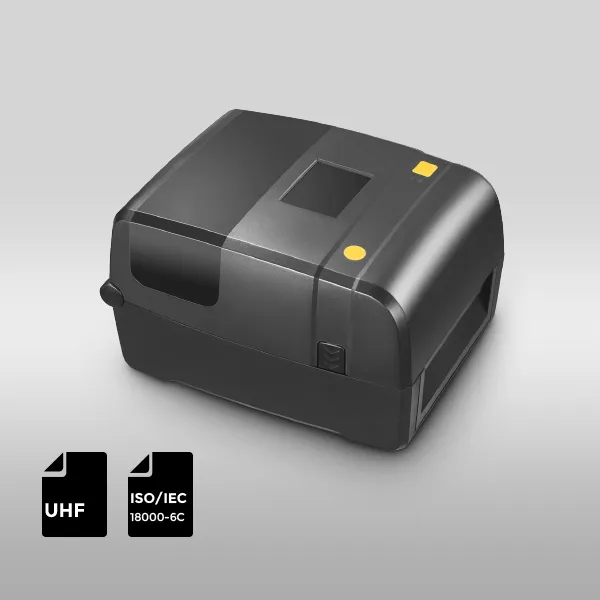
UHF RFID Printer AZ-CP30
Print speed up to 8 ips. With RFID function supporting UHF RFID, 860–960 MHz, and EPC C1G2 (ISO 18000–6C), with the function to automatically identify the printer head with 203 dpi and 300 dpi and automatically configure the printer without PC settings. With super large storage, DDR2 RAM 128 MB, Flash 256MB. Support multiple interfaces, USB HOST, B-type USB, Ethernet port for standard, Wi-Fi, and Bluetooth module for optional.